Internet privacy is something a lot of people are concerned about. Despite this, not a lot of people know the best ways to go about it. This article will give you some information you need to make sure you can keep yourself protected from any
When whistleblower Edward Snowden was communicating with Glenn Greenwald back in 2013 about the goings-on at the NSA, one of the tools he used to protect himself was Tails. But that was a long time ago. So does Snowden still like Tails? Here’s what he had to say on the subject in this December 13, 2017 tweet:
TAILS (@Tails_live, https://t.co/Re3LzE4WdO) is the most accessible for normal folks looking to "torify" non-browser traffic, and a gentle introduction to Linux (which is still gonna be a learning experience). You can boot it from a USB stick without overwriting your everyday OS. https://t.co/eHqYarXFjZ
— Edward Snowden (@Snowden) December 13, 2017
Even if you don’t understand exactly what he’s talking about (yet), this Tails thing is important. So please keep reading to learn what it is and why it has become so popular.
Tails is a unique computer operating system. It is designed to help you use the Internet anonymously and get around censorship. Tails is a live system (live operating system) that runs from a USB stick or DVD. It lets you connect to the Internet using virtually any computer while leaving no trace of your activities after you have finished.
Even better, Tails is free software that anyone can install and use whenever and wherever privacy and anonymity are essential.
Because Tails was designed from the beginning to provide privacy and anonymity, it differs from other operating systems in several areas:
With all these privacy and anonymity features together in a package that you can literally carry in your pocket, it is easy to see why privacy fans love Tails.
This all sounds great, but you may still be wondering, “Is Tails safe to use?” Tails is far safer than the typical operating system, but it is not foolproof. There are various ways bad guys can get around the protections built into Tails. Here is a detailed explanation of Tails’ security limitations.
Watch the following video for a more detailed introduction to Tails:
One of the great things about Tails is that you can create your own Tails USB Stick or DVD and try it yourself. And since it is free software, all it will cost you is the USB Stick or DVD you install it on.
In the following few sections, we’ll talk about the process of creating and configuring a Tails System using a USB Stick. We won’t walk you through the process step by step, as the details depend on the type of computer you install from and the media you will install to.
We encourage you to create your own Tails System by following the instructions on the Download and Install Tails page that applies to your situation.
Once we’re done, you’ll be able to see for yourself how Tails and its included software work.
We’re going to:
On the 3rd May 2022, Tails announced the launch of Tails 5.0. This is the first version of Tails to be based on Debian 11 includes lots of new versions of software and tools.
Some features to note are:
We used a computer running Linux to create our Tails System. Clicking through the options on the Download and Install Tails page led us here:
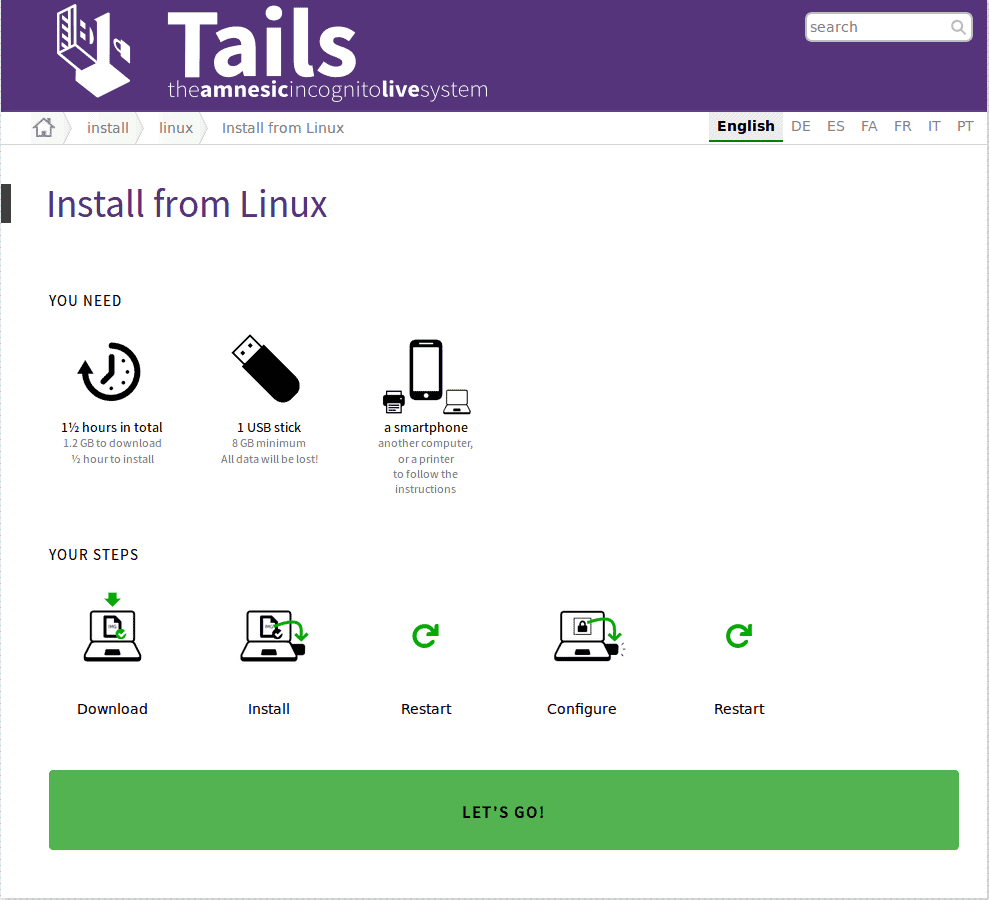
Once we were ready, we clicked the big green “Let’s Go” button, which led us to the detailed instructions. From here on out, it was just a process of following the detailed instructions provided by the Tails team.
We downloaded the Tails USB image then verified it using the Tails Verification browser extension. Verifying your download is vitally important. This will tell you if your download is somehow corrupted.
Downloads are sometimes incomplete, or part of the download might not be 100% identical to the original. And sometimes, hackers break through the security on a website and replace the original with a hacked version. Verifying your download will spot any of these problems for you.
Once we had a verified version of the Tails USB image on our computer, we followed the instructions for installing it on the USB stick.
Installing Tails might be overstating things a bit here. All that we need to do is copy the verified Tails USB image onto your USB Stick. The instructions will tell you exactly how to do this for the computer you are using to install Tails.
Running Tails for the first time may be more challenging than downloading and installing it. That’s because most computers are not configured to run from a USB Stick.
We had this problem and had to spend some time figuring out how to get our computer set up correctly. The Tails does not start at all troubleshooting guide helped us deal with this.
There isn’t a lot of configuring to do with Tails initially. When you start Tails, you see a screen that looks like this one:
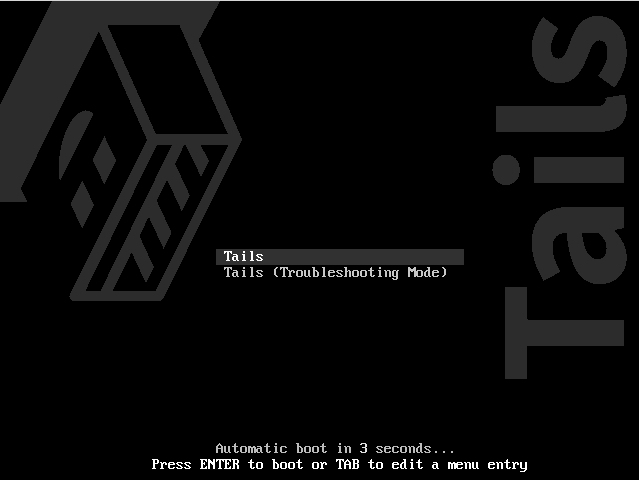
After you press Enter (or several seconds with no input), the Tails Greeter screen appears:
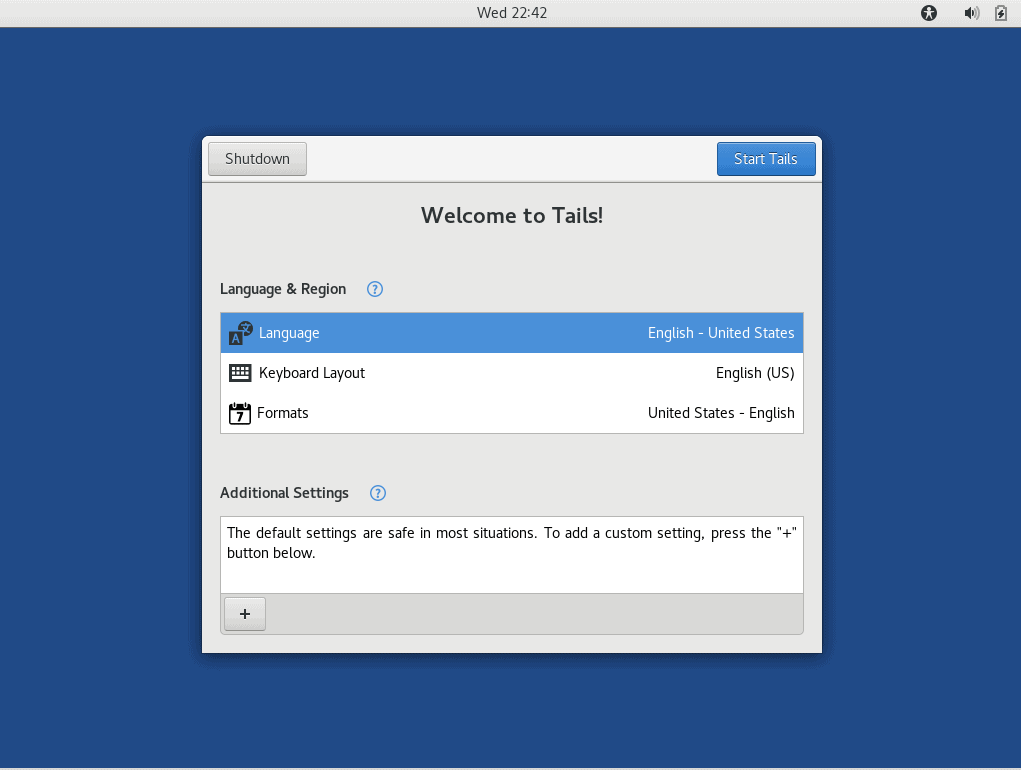
Here you tell Tails the Language you want to use, the Keyboard Layout, and the Formats for things like the date and time.
In addition, you can activate a full range of Accessibility options from the Universal Access menu:
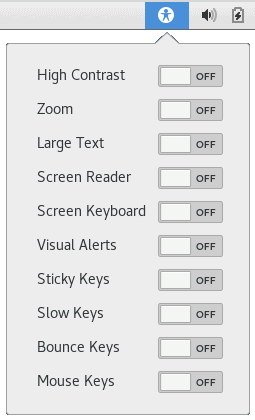
NOTE: The Tails team configured Tails to be as safe as possible by default. If you need to deviate from the defaults, the Additional Settings section of the Greeter is where you make those changes. We recommend you avoid making any changes here, if at all possible.
Once you are done setting things up in Greeter, click the Start Tails button.
Tails uses the GNOME graphical user interface. GNOME is used in several versions of Linux and is one of the more popular user interfaces. In Tails, the GNOME desktop looks like this:
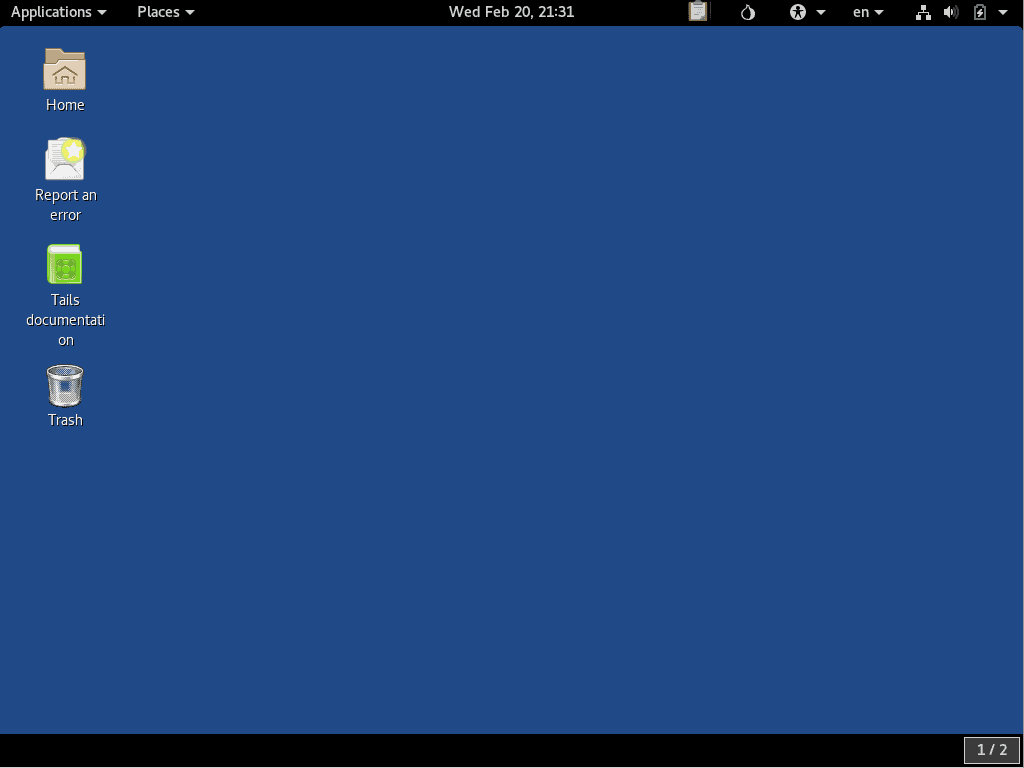
The Top Navigation Bar contains the two main Tails menus, along with a group of icons with various functions. Here is a quick summary of what you’ll find in this navigation bar, from left to right:
Tails is of little use unless it is connected to the Internet. But before it can connect to the Internet, Tails needs to connect to your network. You can see the status of your connection to the local network in the System menu:
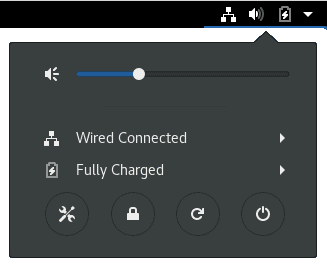
We had no problem connecting Tails to our local network. Once we did, it automatically connected itself to the Tor network and through that to the Internet.
You can quickly see if you are connected to the Tor network by looking at the Tor Status icon in the top Navigation Bar.
If Tails is connected to the Tor network, the Tor Status icon looks like this:

If Tails is not connected to the Tor network, the Tor Status icon looks like this:

While we had no problems, connecting Tails to the Internet doesn’t always go so smoothly. If you have problems, the Tails documentation has detailed instructions on how to connect to the Internet anonymously.
The Tor Browser is based on the popular Firefox browser. But it has been heavily modified, with your privacy and anonymity in mind. The developers stripped out services like JavaScript and cookies that can be used to defeat the anonymity provided by the Tor network. This makes the Tor Browser safer for you to use, but you may find that some websites don’t work right without these services. You can learn more about the differences at the Tor Browser page.
The Tor network and browser provide you with anonymity when using the Internet. But anonymity doesn’t guarantee privacy. Let’s take a quick look at a few of the most useful encryption tools that Tails gives you to boost your privacy.
This can be confusing, so let’s look at an example. Let’s say I want to send a message to my wife, Ruth. I don’t use an encrypted application to create it, so the message starts out in plain text. Before the message leaves my computer, Tor wraps it up in three layers of encryption. That’s an essential part of how Tor works.
As my message passes through the network, Tor strips off layers of encryption. When my message leaves the Tor exit mode and goes to its destination, all the layers of encryption that Tor added are gone. What Tor has done is make it impossible to trace my message back to the computer it came from. This provides anonymity.
But what about the contents of my message? The contents are now in the same state that it went into the Tor network. Since I sent a plain text message into the network, a plain text message comes out of the network.
This might be fine, but it might be disastrous. When in doubt, it is best to be safe and use the encryption tools provided by Tails. That way, your messages, and data can only be read by the people who are supposed to read them. Even if they were somehow able to intercept your messages en route, all any snoop would see would be incomprehensible gibberish.
Tails gives you several ways to keep your communications secure from prying eyes.
If you want maximum privacy, you should use the OpenPGP applet. Encrypting and decrypting messages is riskier if you do it in the web browser. To use the applet, you can compose your message in a text editor, then use the applet to encrypt it. Likewise, you can receive an encrypted message and import it into the applet before decrypting it.
Using OpenPGP can be labor-intensive. If you are sending lots of encrypted messages by email, Thunderbird, an email program that comes pre-installed on Tails, might be a better option than OpenPGP. If you want to go this route, you can find more information at the Thunderbird Help page.
Pidgin Instant Messenger is a chat application that can connect to several different chat systems simultaneously. When combined with OTR (Off-the-Record) messaging, you get encryption and more. If you want to be able to chat securely while using Tails, get all the details at the Chatting with Pidgin page.
Normally Tails only stores data until you shut down. But if you are running Tails on a USB Stick with additional space available, you can create a Persistent Storage area on the USB Stick to retain data long term.
There are pros and cons to creating a Persistent Storage area, and the Tails team advises against doing so in most cases. Still, if you need to store data securely, or add additional applications beyond those that come pre-installed, this is your best option.
| Pros | Cons |
| Allows you to store encrypted data on the Tails USB Stick | The Persistent Volume is visible to anyone who has access to the USB Stick. |
| You can install additional applications | Installing non-default applications can break Tails security |
| You can change the configuration of applications | Changing configurations of default applications can weaken anonymity |
| You can open the Persistent Storage from other operating systems | Accessing Persistent Storage from other operating systems can compromise security |
To further minimize the risks of using Persistent Storage, you get to specify exactly which types of files Tails can store there.
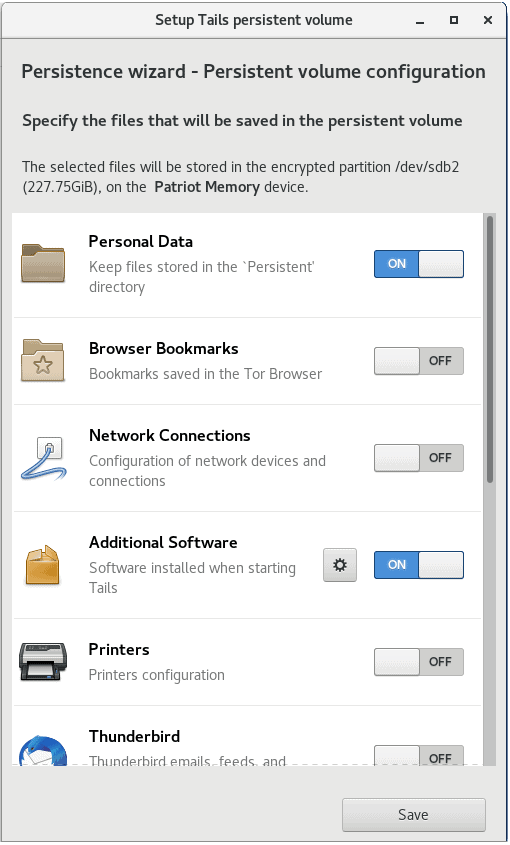
If you still want to go ahead after looking at the pros and cons, you’ll want to head to the Encrypted Persistence page for detailed instructions.
One of the best uses for Persistent Storage is to keep track of all your passwords. Using a different, strong password for each website and application that needs one is a must, but keeping track of them all without computerized help is almost impossible.
To address this problem, Tails comes with KeePassX, an open quality password manager. You can use it to keep track of all your passwords while only needing to remember the single password that unlocks this application.
If you are interested in cryptocurrencies and are familiar with crypto exchanges, you definitely want to check out Tails. Its privacy and anonymity make it a safer place to keep your cryptocurrency wallets than a standard computer. Tails includes a Bitcoin wallet in its pre-installed software.
The Electrum Bitcoin Wallet comes standard with Tails. With only a little work, you can transfer your Bitcoin keys into Electrum. Once you do, your keys will be safer, and your Bitcoin transactions will gain the anonymity of the Tor network. To learn more about the Electrum Bitcoin Wallet, visit the Electrum Home Page.
Monero is a secure, private, and untraceable cryptocurrency. That makes Tails a natural place to store your Monero. If you want to keep your Monero on Tails, you’ll need to set up Persistent Storage on your Tails USB Stick. That’s because Tails does not have a pre-installed wallet for Monero as it does for Bitcoin.
Here are the instructions for setting up Persistent Storage. Once you have that setup, here are the instructions for installing the Monero wallet on Tails.
If you want the ultimate in security for your Monero, you’ll store it in a cold wallet. Tails is an ideal tool for creating such a wallet. Tails leaves nothing behind on a computer that could help a bad guy get access to your cold wallet or even know it exists. And by using Tails, you’ll be creating your cold wallet on a safer system.
Check out this link if you are interested in creating a Monero cold wallet using Tails.
While Tails is a great privacy operating system, it isn’t the only one available, or even the best for every situation. In particular, people interested in online privacy and anonymity often use Whonix or Qubes.
So which is the best? As usual, the answer is, “it depends.” Let’s see how each one stacks up against Tails.
Whonix typically runs as two VirtualBox virtual machines. You do your work in one virtual machine(the Workstation). The other (the Gateway) handles all connections between the Workstation and the Internet by passing them through the Tor network.
This design means that any computer that can run VirtualBox should be able to run Whonix. This makes it easy to install Whonix, but there are some big security implications to this design.
When you run Tails from a USB stick or DVD, it is the only operating system running on the computer. To run Whonix, you need to have the host operating system running too. You can easily jump back and forth between the private and anonymous Whonix workstation and the host computer.
While this is convenient, it makes it all too easy to do something in the host when you should be doing it in Whonix and vice versa. Even worse, Whonix can’t force communications between the host and the Internet to go through Tor. If you do slip up and do something in the host that you shouldn’t, you’ve lost your anonymity.
While Whonix has some advantages, we think Tails is a better privacy solution than Whonix.
In some ways, Qubes is more like Tails than Whonix is. That’s because when you run Qubes, it is the only operating system running on the computer. This is inherently more secure than the Whonix approach since there is no way to accidentally get “outside” the secure Qubes environment.
Qubes contains its own virtual machines with differing levels of trust for running applications. The virtual machines are completely isolated from each other by Qubes. This limits the damage that a bad app (like spyware or a virus) can do by confining that damage to one virtual machine.
Qubes itself doesn’t provide any real anonymity. To address this, people sometimes run Whonix inside of Qubes.
One big drawback of Qubes (with or without Whonix) is that there isn’t a Live USB version of it. This means that when you use Qubes, there will likely be traces of it leftover on the host computer once you end your session.
As with Whonix, while Qubes has some benefits, we think Tails is a better solution overall.
Whether Tails is the “right” operating system for you depends on what you plan to do with it. You probably don’t want to use it as your main operating system. The features that make it such a good privacy tool can make it clumsy for full-time use. Installing your favorite software can be a hassle and may break the privacy protection that Tails provides. Making all your connections to the Internet go through the Tor network will slow down your browsing.
But there are many situations where Tails is extremely useful for anyone concerned with online privacy and anonymity:
In short, virtually anyone reading this can think of situations where they could use the privacy and anonymity that Tails can give you. We think it is a great tool, as long as you remember that nothing is 100% safe and secure. Check out the Tails warnings page to be sure you understand the limitations, then give Tails a try.
And in case you were wondering why they call this thing “Tails,” the name is an acronym. It stands for “The Amnesic Incognito Live System.” Now you know.
Tails OS – An Actionable Guide for Regular Folks was originally found on Blokt - Privacy, Tech, Bitcoin, Blockchain & Cryptocurrency.
06-06-2026





Kitchen furniture prices custom kitchen cabinets Florida Kitchen furniture prices custom kitchen cabinets Florida